Until now, the game could only start in two places: the first room, or Telluria. If you built a world in the Studio, the only way to play it was to launch the game from the command line, which isn’t something most people should have to do.
That has changed. The game now looks in a folder for worlds, so anything you build in the Studio can be played in the game, with no restart and no command line.
Choosing where to begin
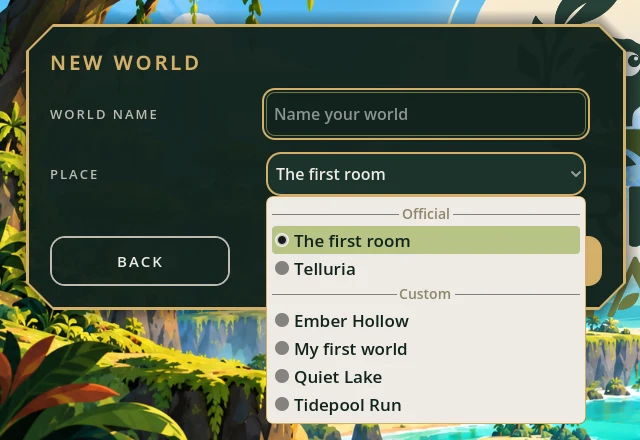
When you start a new world, the New world window has a Place list, and the list now has two parts.
The first part is called Official. It holds the places that come with the game, which for now means the first room and Telluria.
The second part is called Custom. It lists every world file the game finds in your worlds folder, in alphabetical order, each shown under the name its maker gave it. If you haven’t made or downloaded any worlds yet, this heading simply doesn’t appear.
 Work in progress · in-game
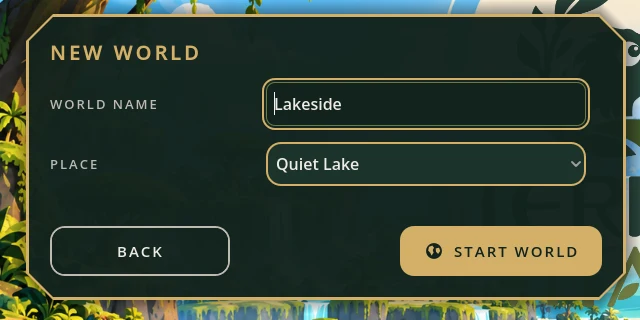
If two worlds happen to share a name, the game adds their file names so you can tell them apart. Pick a place, give your new world a name, and it begins on that place’s ground, with all the scenery and items its maker put there, just as it does when you start in Telluria.
 Work in progress · in-game
Your worlds folder is Documents/TerraVitae/Worlds, the same place your saved games already go. The two kinds of file are easy to tell apart. A world you build ends in .tvw, and a saved game ends in .tvworld. A world is a single file, so sharing one is as simple as sending it to a friend, who drops it into their own folder.
From making to playing, quickly
The list is read each time you open the New world window, so trying out a world is quick:
- Build a world in the Studio and save it into your worlds folder. In the Studio, New world now starts an empty world at whatever width and height you type in (24,000 by 4,800 is the usual size), and Load world reopens one you made earlier.
- Open New world in the game. Your world is already in the list.
- Want to change something? Go back to the Studio, edit, save, and open New world again.
The Studio has grown a lot this month, too. You can swap the sun, the moon and any of the six background layers for your own drawings, turn scenery round using a handle on the canvas, and group, name, hide and lock things in the Order list. We wrote about that in Inside the Studio.
What happens to saved games
A saved game remembers which world it started on, and carries on from that world file when you open it again. That raises an obvious question: what if the world has changed since you last played? Here is what the game does.
If you edited the world file after your last save, the saved game opens on the file as it is now. Sometimes that leaves an animal or an egg stuck inside new ground or a new wall. When that happens, the game takes it out of the world, tells you, and saves it to a file in Animals/automatic/, named with the date and time. Nothing is thrown away, and you can import that animal again later. Every animal that is fine stays exactly where it was.
If the world file has been deleted, the saved game won’t open, and a message tells you which file is missing. Your save is left alone, so putting the file back brings everything back.
If a file in the folder isn’t a world, is damaged, or was made by a newer version of the game, it just doesn’t show up in the list. The game carries on and your other worlds are still there.
The game only ever reads your world files. It never writes to them, moves them or deletes them.
What isn’t here yet
There is no window for finding or installing other people’s worlds, and nothing on Steam Workshop. For now, a world is a file in a folder. The list doesn’t show pictures, descriptions or ratings either, and it doesn’t notice changes to the folder while the window is open, so close and reopen New world if you’ve just added one.


